
Stunning Workspaces for Windows 10
Workspaces for Windows 10 are more than just a collection of icons on a desktop; they are personalized digital environments designed to enhance productivity, spark creativity, and reflect your unique style. In a world increasingly reliant on our computers, crafting a workspace that is both functional and aesthetically pleasing has become an art form. Whether you’re a creative professional, a seasoned gamer, a meticulous student, or a busy executive, Windows 10 offers a surprisingly flexible platform to build a digital domain that truly works for you. Forget drab, cluttered screens; it’s time to explore the possibilities and transform your Windows 10 experience into something truly stunning.
The Foundation of a Functional Workspace: Organization and Aesthetics

Before diving into visual flair, the bedrock of any effective workspace is organization. A cluttered desktop is a recipe for distraction and frustration. Luckily, Windows 10 provides several tools to help you conquer the chaos.
Virtual Desktops: This is arguably one of the most powerful, yet underutilized, features for creating distinct workspaces for Windows 10. By pressing `Win + Tab` or clicking the Task View icon on the taskbar, you can create multiple desktops. Dedicate one for your current project, another for research, one for social media, and even a “distraction-free” desktop for focused work. Switching between them is seamless, keeping your active tasks separate and preventing mental overload.
Icon Management: While the temptation to fill your desktop with shortcuts is strong, resist it. Utilize the Start Menu and taskbar for frequently used applications. For less common programs, create folders to group them logically. Consider using desktop icon organizer software that can automatically arrange your icons or allow you to save and restore desktop layouts.
File Explorer Organization: Deep within File Explorer, take the time to create a logical folder structure for your documents, images, and projects. Consistent naming conventions will be your best friend when searching for files later. Pin frequently accessed folders to Quick Access for instant access.
Once your digital landscape is organized, you can begin to imbue it with personality and visual appeal.
Unleashing Creativity: Personalizing Your Workspaces for Windows 10
Windows 10 offers a wealth of customization options that go far beyond simply changing the wallpaper. These tools empower you to craft a digital sanctuary that invigorates your work and reflects your individuality.
Wallpaper: The Canvas of Your Digital World

Your wallpaper sets the tone for your entire workspace. Opting for a high-resolution image that inspires you can make a significant difference.
Inspirational Photography: Nature scenes, breathtaking cityscapes, or abstract art can provide a calming or energizing backdrop.
Personal Photos: A cherished family photo or a memory from a memorable trip can add a deeply personal touch.
Minimalist Designs: For a distraction-free environment, consider a solid color or a subtle gradient.
Dynamic Wallpapers: Some third-party applications allow for animated or even slideshow wallpapers, adding a subtle dynamism to your desktop.
The Power of Color: Themifying Your Windows 10 Experience

The accent color in Windows 10 can subtly tie together various elements, from window borders to the Start Menu.
Color Picker: Windows 10’s built-in color picker allows you to choose from a wide spectrum. Experiment with colors that evoke specific moods – blues for calmness, greens for focus, or yellows for creativity.
Dark Mode: For extended screen time, dark mode (`Settings > Personalization > Colors > Choose your app mode`) can significantly reduce eye strain and create a more sophisticated aesthetic, especially for creative professionals working late into the night.
Taskbar Customization: Your Command Center
The taskbar is a crucial element of your workflow. Personalizing it can streamline your access to essential tools.
Pinning and Unpinning: Pin your most-used applications to the taskbar for instant access. Unpin those you rarely use to reduce clutter.
Taskbar Alignment: While not everyone’s preference, aligning the taskbar to the left or right side of the screen can offer a different ergonomic experience for some users.
System Tray Icons: Right-click on icons in the notification area (system tray) to customize which ones are always visible and which are hidden.
Advanced Customization: Beyond the Built-in Tools
For those who want to push the boundaries of what’s possible, a vibrant third-party software ecosystem exists to enhance your workspaces for Windows 10.
Rainmeter: This powerful desktop customization tool allows for highly detailed and dynamic visual elements. You can create custom skins for system monitoring, weather widgets, music players, and much more, all integrated beautifully into your wallpaper.
Fences: Developed by Stardock, Fences helps organize your desktop icons into visually appealing shaded areas called “fences.” You can create different fences for different categories of applications or files, keeping your desktop tidy while still having easy access.
TranslucentTB: If you’re a fan of a minimalist and immersive look, TranslucentTB can make your taskbar transparent or translucent, blending it seamlessly with your wallpaper.
Icon Packs and Themes: Numerous websites offer custom icon packs and themes that can completely transform the look and feel of your Windows 10 interface, from the classic Aero look to modern, flat designs.
Creating the Ideal Workspace: Tailoring to Your Needs
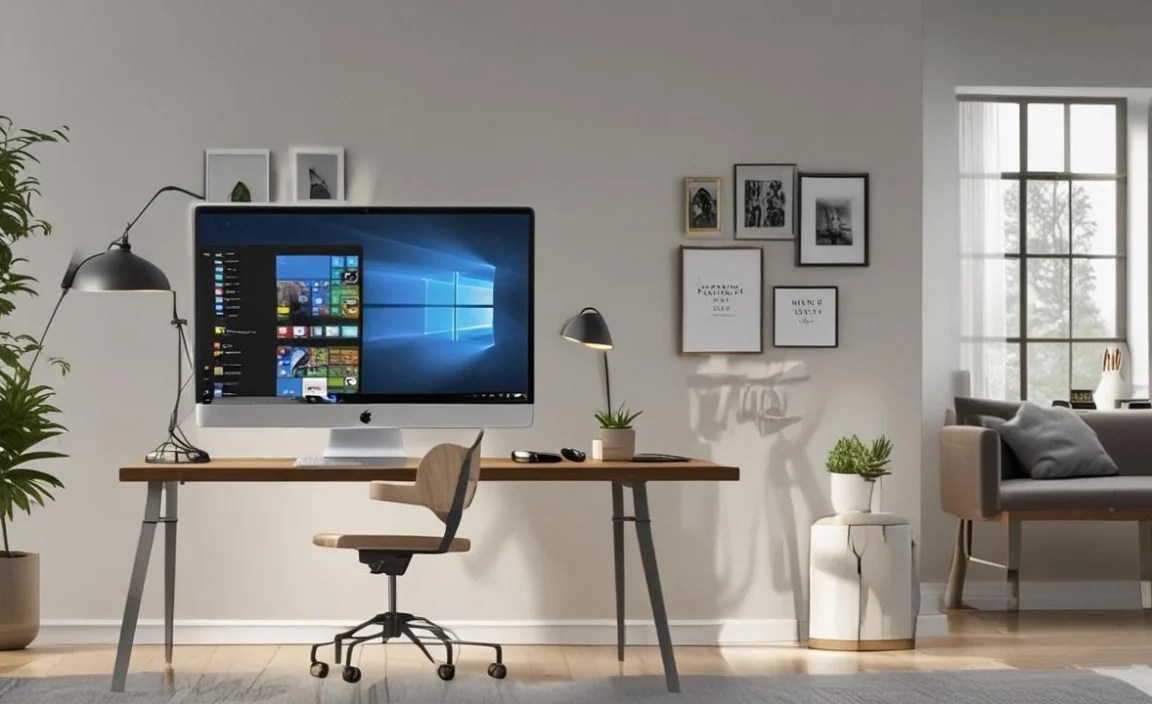
Ultimately, the “stunning” aspect of your workspace is subjective and tied to your individual needs and preferences.
The Creative’s Haven: For designers and artists, a clean, minimalist workspace with quick access to creative software and inspirational imagery is key. Large monitors and high-resolution wallpapers often feature prominently.
The Gamer’s Den: Gamers might prioritize performance and quick access to launchers and system monitoring tools. Dynamic wallpapers with game themes or custom-built RGB lighting setups can add to the immersive experience.
The Productivity Powerhouse: For those focused on getting things done, virtual desktops, meticulously organized folders, and distraction-free tools are paramount. A clear and uncluttered aesthetic promotes focus.
The Student’s Study Zone: Students might benefit from separate desktops for different subjects, easy access to research tools, and calming wallpapers to aid concentration.
By leveraging the built-in features of Windows 10 and exploring the vast world of third-party customization tools, you can craft workspaces for Windows 10 that are not just functional, but truly inspiring. Your desktop is your digital canvas; paint it with the colors of productivity and personal style.


