
iTunes Install: Effortless Windows 10 Setup
Achieving an iTunes install on your Windows 10 machine is a straightforward process that unlocks a world of music, movies, podcasts, and app management for your Apple devices. Whether you’re a seasoned Apple user or new to the ecosystem, this guide will walk you through each step, ensuring a smooth and hassle-free experience. Gone are the days of complicated software installations; with a few clicks, you’ll be ready to dive into the vast library of content Apple offers. This comprehensive guide aims to demystify the process, providing clear instructions and helpful tips to get iTunes up and running on your Windows 10 computer efficiently.
Why Install iTunes on Windows 10?
For many, iTunes serves as the central hub for managing their digital life connected to Apple products. It’s the primary tool for syncing music and other media to iPhones, iPads, and iPods. Beyond syncing, iTunes allows you to purchase and download songs, albums, movies, TV shows, and podcasts directly from the iTunes Store. For those who prefer a physical backup or wish to transfer files between their computer and devices, iTunes provides the necessary functionality. Furthermore, it’s essential for updating the software on your Apple devices or restoring them to factory settings. Even with the advent of iCloud and other cloud-based services, iTunes remains a powerful and indispensable application for many Windows 10 users.
Prerequisites for a Smooth iTunes Install
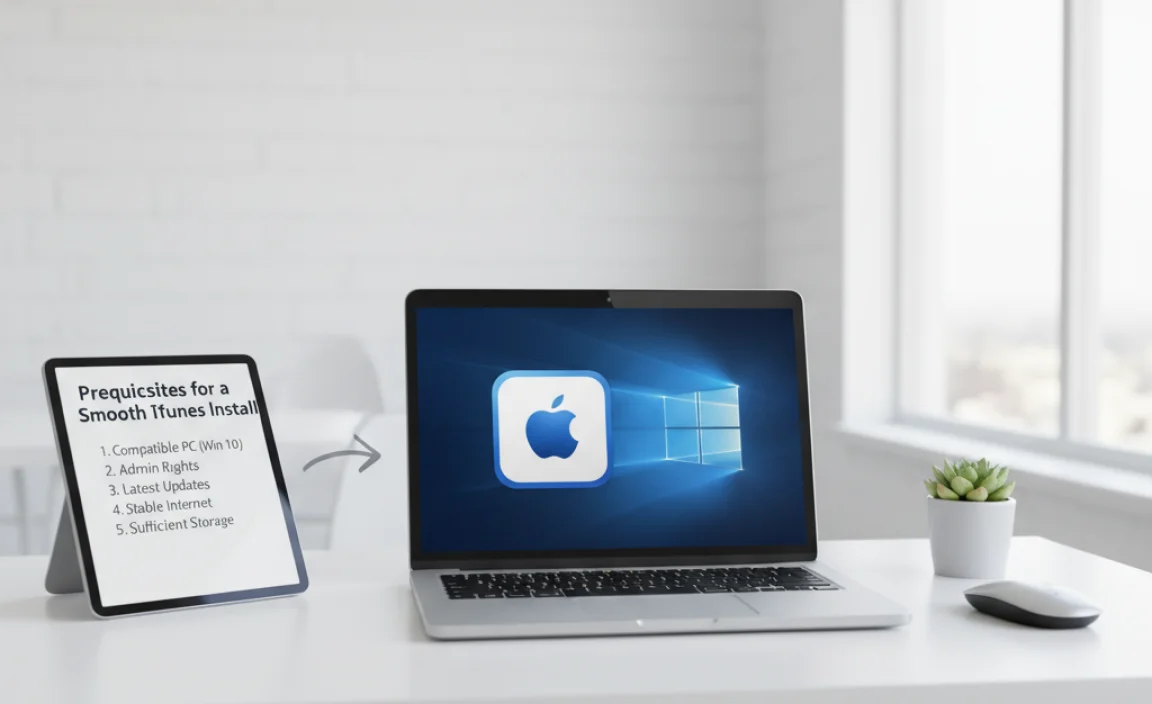
Before you begin the installation, ensuring your Windows 10 system meets the basic requirements will prevent potential hiccups.
Operating System: While the focus is on Windows 10, ensure your version is up-to-date with the latest service packs and updates. This can be checked and installed through Windows Update.
Internet Connection: A stable internet connection is crucial for downloading the iTunes installer file. The size of the download can vary, so a reliable connection will prevent interruptions.
Administrator Privileges: You will need administrator rights on your Windows 10 computer to install new software. If you’re not the administrator, you’ll need to ask for permission or log in with an administrator account.
Disk Space: Ensure you have sufficient free space on your hard drive for the iTunes application and any media files you plan to store. Apple typically recommends a minimum of 400MB for the application itself, but significantly more if you intend to use it for extensive media storage.
Downloading the iTunes Installer
The first actionable step is to download the official iTunes installer. Apple provides three primary methods for Windows users:
1. From the Apple Website:
Open your preferred web browser and navigate to Apple’s official iTunes download page. You can usually find this by searching “Download iTunes” on a search engine, and be sure to select the link from `apple.com`.
On the download page, you’ll typically see options for both the 64-bit and 32-bit versions of Windows. Most modern Windows 10 PCs are 64-bit. If you’re unsure, you can check by going to `Settings > System > About` and looking under “System type.”
Click the appropriate download link for your system. The download will begin automatically.
2. Via the Microsoft Store:
For a potentially simpler installation and automatic updates, you can download iTunes directly from the Microsoft Store.
Open the Microsoft Store app on your Windows 10 PC.
In the search bar, type “iTunes” and press Enter.
Locate the official iTunes app (usually published by Apple Inc.) and click on it.
Click the “Get” or “Install” button. The store will handle the download and installation process.
Choosing the Microsoft Store option often streamlines the process, as it manages updates automatically moving forward. However, some users may prefer the direct download from Apple’s website for more direct control.
Step-by-Step iTunes Install Process
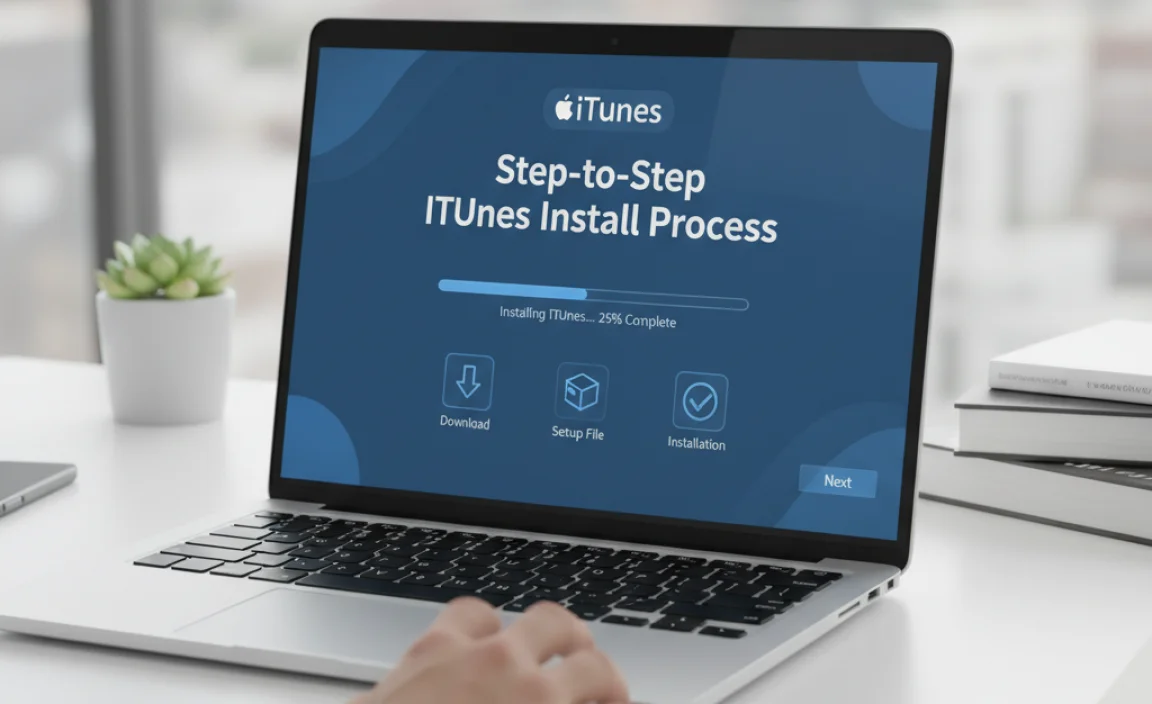
Once you have the installer file (if downloaded from Apple’s website), the installation process is quite intuitive.
1. Locate the Installer: Find the downloaded `.exe` file, typically in your “Downloads” folder.
2. Run the Installer: Double-click the installer file to launch the iTunes Setup Assistant.
3. Welcome and License Agreement: The setup wizard will begin with a welcome screen. You’ll then be prompted to accept the iTunes software license agreement. Read through it and click “Agree” to proceed.
4. Customization (Optional): Before the main installation begins, you may have an option to customize the installation. This often includes choosing the installation destination folder and selecting whether to create desktop shortcuts. For most users, the default options are suitable.
5. Installation Progress: The installer will now copy the necessary files to your computer. A progress bar will show you the status of the installation. This usually takes a few minutes.
6. Completion: Once the installation is complete, you will receive a confirmation message. You might be prompted to launch iTunes immediately. Click “Finish.”
If you chose the Microsoft Store option, the process is even simpler. After clicking “Install” in the Store, Windows 10 handles the entire download and installation in the background, notifying you when it’s ready to launch.
Post-Installation Steps and First Launch
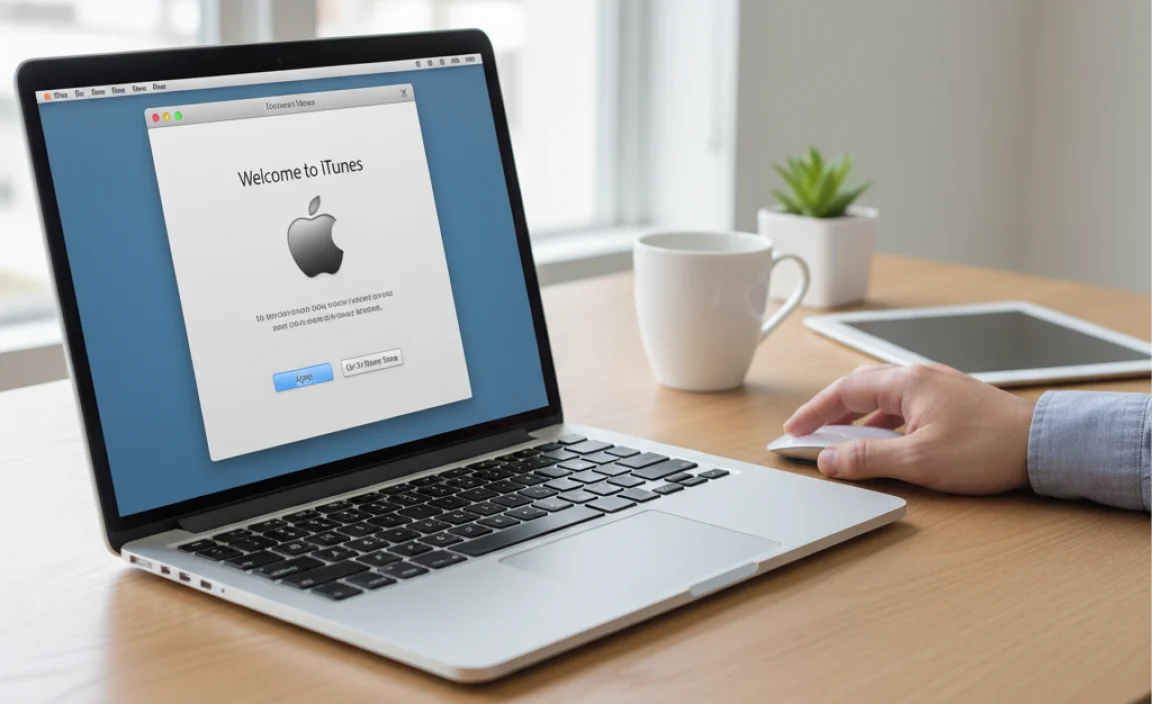
After the iTunes install is finished, you’ll want to launch the application and get acquainted with its interface.
1. Launch iTunes: Find the iTunes shortcut on your desktop or in your Start Menu and double-click it.
2. Accept Terms and Conditions: The first time you launch iTunes, you’ll likely need to agree to a new set of terms and conditions.
3. Sign in with Apple ID: To access the iTunes Store, sync devices, or use other Apple services, you will need to sign in with your Apple ID and password. If you don’t have one, you can create one for free within iTunes or on Apple’s website.
4. Device Setup (for syncing): If you plan to sync your iPhone, iPad, or iPod, connect your device to your computer using a USB cable. iTunes should recognize the device, and you may be prompted to set it up for syncing or to trust the computer.
5. Explore the Interface: Take some time to familiarize yourself with the layout. You’ll find sections for your Music, Movies, TV Shows, Podcasts, Apps, and connected Devices.
Troubleshooting Common Issues
While the iTunes install is generally smooth, occasional issues can arise. Here are a few common problems and their solutions:
Installation Fails: If the installation fails, try downloading the installer again, ensuring your internet connection is stable. Temporarily disable your antivirus software, as it might be interfering with the installation process. Remember to re-enable it afterward.
iTunes Won’t Launch: If iTunes doesn’t launch after installation, try restarting your computer. Ensure you have the latest version of Windows 10 updates installed, as iTunes often depends on underlying system components.
Apple Mobile Device Support Errors: Sometimes, issues with syncing are related to the “Apple Mobile Device Support” service. You can try reinstalling iTunes, ensuring this component is installed correctly. In some cases, manually starting or restarting this service through Windows Services (search for “Services” in the Start Menu) can resolve problems.
“iTunes has stopped working” Error: This generic error can be caused by corrupted library files or conflicts with other software. Try creating a new, empty iTunes library to see if that resolves the issue.
By following these steps, you can ensure a successful and efficient iTunes install on your Windows 10 computer. Enjoy managing your digital media and Apple devices with ease!