Xbox 360 Driver Win 10: Effortless Fix
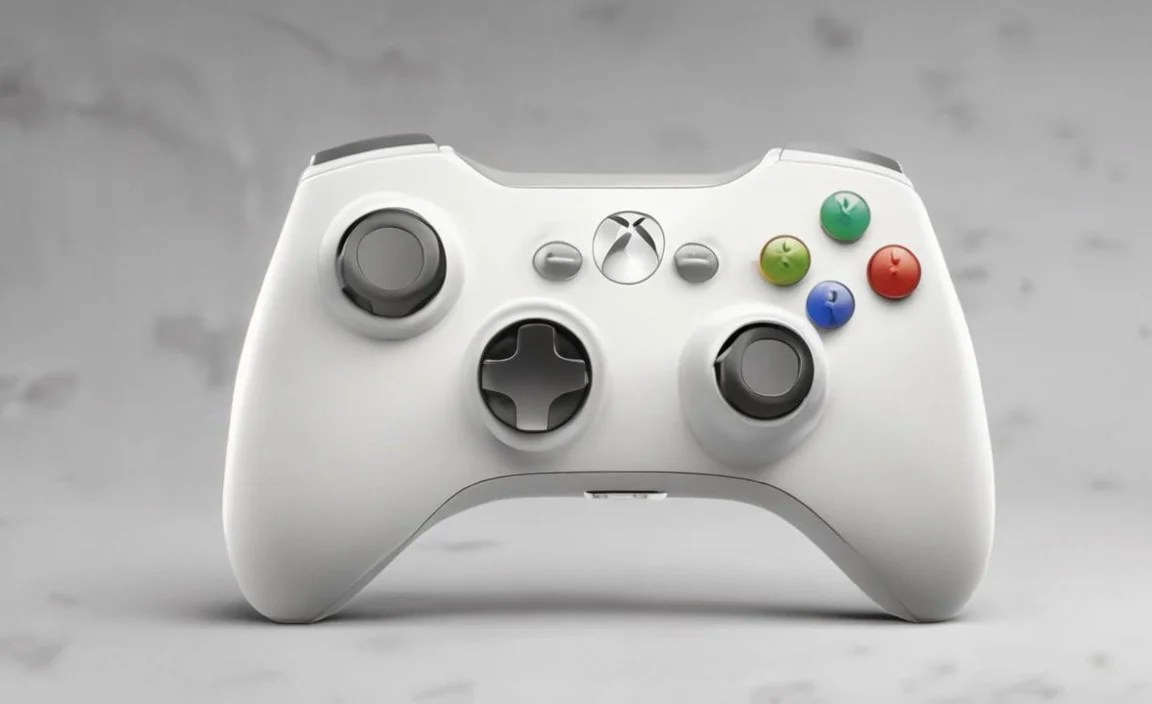
Xbox 360 controller driver for Windows 10 issues can be a frustrating roadblock for gamers looking to relive classic titles or enjoy modern PC games with their preferred input device. While Microsoft has largely moved on to the Xbox One and Series X/S controllers, the enduring popularity of the Xbox 360 gamepad means many users still rely on it. Fortunately, getting your trusty Xbox 360 controller recognized and functioning smoothly on Windows 10 is usually a straightforward process. This guide will walk you through the most common solutions, helping you resolve driver problems quickly and get back to your gaming.
Understanding Why Your Xbox 360 Controller Might Not Be Working
Before diving into the fixes, it’s helpful to understand why your Xbox 360 controller might not be detected by Windows 10. The most common culprits include:
Outdated or Corrupted Drivers: Windows needs specific software (drivers) to communicate with hardware. If these drivers are old, incompatible, or have become corrupted, the controller won’t work.
Connection Issues: A loose USB cable, a faulty USB port, or problems with the wireless adapter can all prevent detection.
Windows Updates: Occasionally, a Windows update might interfere with existing drivers, requiring a reinstallation or update.
Hardware Malfunctions: While less common, the controller or its wireless adapter itself could be faulty.
The Automatic Solution: Windows Update
For many users, Windows 10 is designed to automatically detect and install necessary drivers for common peripherals like the Xbox 360 controller. If you’re plugging in a wired controller or a wireless adapter for the first time, give Windows a few moments to work its magic in the background.
Steps to initiate or check for Windows Updates:
1. Connect your Xbox 360 controller: Ensure it’s securely plugged into a USB port (for wired) or that your wireless adapter is inserted.
2. Open Settings: Click the Start button and select the gear icon to open the Settings app.
3. Go to “Update & Security”: Click on this option.
4. Select “Windows Update”: On the left-hand menu, choose “Windows Update.”
5. Click “Check for updates”: Windows will scan for available updates, including driver updates. If it finds the correct driver for your Xbox 360 controller, it will download and install it automatically.
6. Restart your PC: After the update is complete (or if no updates were found that related to your controller), restart your computer to ensure all changes take effect.
If this automatic process doesn’t resolve the issue, or if you suspect a specific driver problem, you’ll need to manually intervene.
Manual Driver Installation for Your Xbox 360 Controller
Sometimes, Windows might not correctly identify the controller, or you might need a specific version of the driver. In these cases, manual installation is the way to go.
Verifying the Xbox 360 Controller Driver for Windows 10 in Device Manager
The Xbox 360 controller driver for Windows 10 can be managed and checked within Windows’ Device Manager. This tool provides a detailed overview of all hardware connected to your computer and their driver status.
Steps to check Device Manager:
1. Connect your controller: Make sure it’s plugged in.
2. Open Device Manager:
Right-click on the Start button.
Select “Device Manager” from the context menu.
3. Locate your controller: Look for a category like “Human Interface Devices,” “Keyboards,” or “Universal Serial Bus controllers.” Your Xbox 360 controller might appear as “Xbox 360 Controller for Windows,” or it might be listed with a yellow exclamation mark if there’s a driver issue.
4. Check for errors: A yellow exclamation mark next to a device indicates a problem. Right-click on the device and select “Properties” to see more details about the error.
If you find an error or the controller isn’t listed correctly, you can attempt to update or reinstall the driver from here.
Updating the driver manually:
1. Right-click on the Xbox 360 Controller in Device Manager.
2. Select “Update driver.”
3. Choose “Search automatically for drivers.” Windows will try to find a suitable driver online or on your computer.
4. If that doesn’t work, select “Browse my computer for drivers.” Then, choose “Let me pick from a list of available drivers on my computer.”
5. You should see a list of compatible hardware. Look for “Xbox 360 Controller for Windows” or similar. Select it and click “Next.”
If you’re having trouble, it’s often best to uninstall the device and then let Windows attempt to reinstall it, or follow the more direct download method below.
Downloading and Installing Drivers Directly from Microsoft
In situations where automatic updates fail, or you want the latest official driver, downloading it directly from Microsoft’s support website is a reliable method.
1. Visit the Microsoft Download Center: Search for “Xbox 360 Controller for Windows” on the Microsoft website. You should find a dedicated download page.
2. Download the correct version: Ensure you download the driver package that matches your Windows 10 architecture (32-bit or 64-bit). Most modern PCs are 64-bit. If you’re unsure, go to Settings > System > About and check “System type.”
3. Run the installer: Once downloaded, double-click the executable file and follow the on-screen instructions. This will typically install the necessary drivers for your controller and the wireless adapter if you’re using one.
4. Restart your PC: A reboot is usually required after driver installation for the changes to take effect.
Troubleshooting Wireless Xbox 360 Controllers

Wireless controllers introduce an additional point of potential failure: the receiver.
Wireless Receiver Issues: Ensure your genuine Microsoft Xbox 360 Wireless Gaming Receiver for Windows is properly plugged in. If it’s a third-party receiver, compatibility can sometimes be an issue. Try plugging the receiver into a different USB port, preferably directly to the motherboard (rear ports) rather than a front panel port or USB hub.
Pairing the Controller: After installing the drivers, you might need to pair your wireless controller with the receiver. Turn on your controller, and then press the connect button on the wireless receiver. Press and hold the guide button on your controller until it syncs.
Low Battery: A simple but often overlooked cause of connection problems is a dead or low battery in the controller. Try fresh batteries.
Final Checks and Advanced Solutions
If none of the above steps have worked, consider these last resort options:
Try a Different USB Port: Sometimes, a specific USB port can be faulty.
Test on Another Computer: If possible, connect your Xbox 360 controller to another PC to rule out a hardware issue with the controller itself.
System File Checker: Corrupted Windows system files can sometimes interfere with hardware detection. Open Command Prompt as an administrator and type `sfc /scannow` and press Enter. This will scan for and attempt to repair corrupted files.
Getting your Xbox 360 controller driver for Windows 10 working should be a relatively painless experience with these troubleshooting steps. By systematically addressing potential driver conflicts, connection issues, and software glitches, you can quickly restore full functionality and enjoy your favorite games with the comfort and familiarity of your Xbox 360 controller.