
Android OS for Windows 10: Effortless
The desire to run your favorite Android applications seamlessly on your Windows 10 computer has never been more attainable. Gone are the days of clunky workarounds and performance compromises. With advancements in technology, integrating the android operating system for Windows 10 has become an increasingly effortless and rewarding experience, opening up a world of possibilities for productivity, entertainment, and communication. Whether you’re a gamer looking to dominate on a larger screen, a developer needing to test apps, or simply someone who wants to bridge the gap between their mobile and desktop ecosystems, this integration promises a smoother, more unified digital life.
Historically, running Android apps on a Windows PC involved complex emulation or virtual machines, often demanding significant technical know-how and powerful hardware. These solutions could be slow, buggy, and far from user-friendly. However, the modern landscape offers significantly more elegant and accessible methods. The concept of having your mobile operating system coexist or interact deeply with your desktop environment is no longer a niche fantasy; it’s a tangible reality readily available to most Windows 10 users.
The Evolution of Android OS Integration
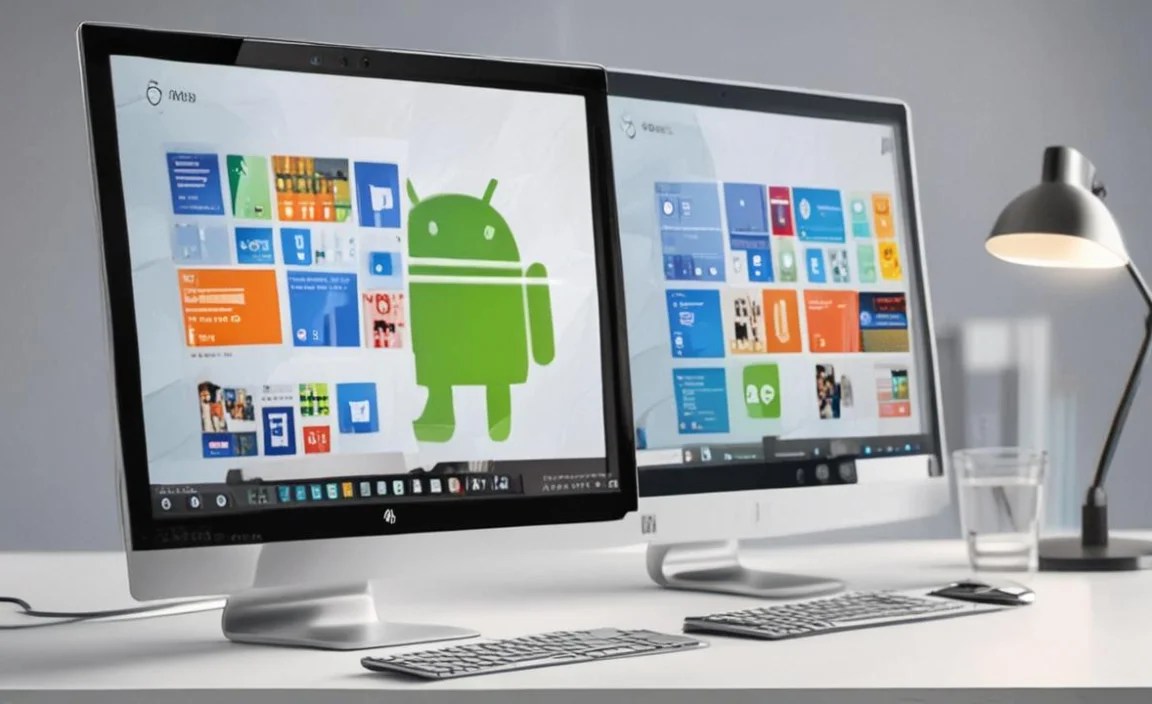
The journey towards effortless android operating system for Windows 10 integration has been marked by gradual but impactful innovations. Initially, emulators like BlueStacks and NoxPlayer paved the way, offering a functional but often resource-intensive solution. These tools create a virtual Android environment within Windows, allowing you to download and run apps from the Google Play Store. While they still serve a critical purpose for many, their performance has been refined over time, becoming more optimized for contemporary hardware.
More recently, Microsoft itself has entered the arena with its Windows Subsystem for Android™ (WSA). This groundbreaking feature, initially introduced with Windows 11 but with anticipation and potential for broader integration, aims to offer a native-like experience for Android applications. WSA allows Android apps to run directly on Windows without the need for a separate emulator in the traditional sense. This approach promises superior performance, deeper integration with the Windows shell, and a more seamless user experience. While officially a Windows 11 feature, discussions and unofficial methods for bringing similar functionalities to Windows 10 have been explored by the tech community, hinting at a future where this integration becomes even more mainstream.
Benefits of Running Android Apps on Windows 10

The advantages of seamlessly integrating the android operating system for Windows 10 are multifaceted and can significantly enhance your daily digital interactions. For gamers, this means the ability to play mobile titles with the precision of a mouse and keyboard, on a larger, more immersive display. Complex controls become manageable, and the lag associated with touch input is eliminated, giving you a competitive edge.
Beyond gaming, developers gain an invaluable tool. Testing Android applications on a Windows machine eliminates the need for multiple physical devices, streamlining the development and debugging process. Access to the full Android environment on their primary workstation saves time and resources.
For the average user, the benefits lie in convenience and productivity. Imagine being able to use your favorite Android messaging apps, social media platforms, or productivity tools directly on your PC, alongside your Windows applications. This eliminates the constant switching between devices and allows for a more unified workflow. You can easily drag and drop files between Android apps and Windows, copy and paste text, and even share your screen more effectively. This level of interoperability fosters a more cohesive digital experience, where your data and applications flow freely between your mobile and desktop worlds.
Exploring Different Methods for Integration
Achieving an effortless android operating system for Windows 10 setup involves understanding the available tools and choosing the one that best suits your needs.
Android Emulators: As mentioned, emulators like BlueStacks, NoxPlayer, and LDPlayer remain popular choices. They download an Android system image and run it within your Windows environment. Setup typically involves downloading the emulator, signing into your Google account, and then accessing the Google Play Store to download apps. These are generally user-friendly and offer a wide range of compatibility.
Virtual Machines: For more advanced users or those requiring a fully isolated Android environment, virtual machines using software like VirtualBox or VMware can be employed. This involves installing an Android x86 project or a similar distribution within the virtual machine. While offering greater control and customization, this method is more technically demanding and can impact performance if not configured correctly.
* Windows Subsystem for Android™ (WSA) – The Future: While officially a Windows 11 feature, WSA represents the pinnacle of seamless integration. It runs Android apps directly within Windows, offering excellent performance and deep integration. For Windows 10 users, the community has explored unofficial methods to install and run WSA, though these are often experimental and may not be as stable or straightforward as the official Windows 11 implementation. Keeping an eye on official developments and potential backward compatibility for WSA is advisable.
Tips for an Effortless Experience
To ensure your android operating system for Windows 10 integration is as smooth as possible, consider these tips:
1. Hardware Considerations: While modern emulators and WSA are increasingly optimized, having a capable processor (Intel Core i5 or equivalent and above), sufficient RAM (8GB or more is recommended), and a decent graphics card will significantly improve performance.
2. Keep Software Updated: Regularly update your chosen emulator or virtual machine software, as well as your Windows 10 operating system. Updates often include performance enhancements, bug fixes, and improved compatibility.
3. Optimize Settings: Within your emulator or virtual machine, explore the performance settings. You can often allocate more CPU cores or RAM to the Android environment, which can make a noticeable difference.
4. Choose the Right Tool: If you primarily want to play games, a dedicated gaming emulator might be best. If you need to test apps for development, a more robust virtual machine or exploring unofficial WSA implementations could be more suitable.
5. Stay Informed: The world of Android integration is constantly evolving. Follow tech news outlets and developer forums to stay updated on the latest methods, tools, and potential official support for Windows 10.
In conclusion, the ability to run the android operating system for Windows 10 has transformed from a technical challenge into an accessible and beneficial integration. Whether through established emulators, advanced virtual machines, or the promising future of native subsystems, users can now enjoy the best of both worlds, creating a more connected, productive, and entertaining digital experience without unnecessary complexity.


