
Proven Free Cell Games For Windows 10
Finding great free Cell games for Windows 10 is easier than you think! This guide offers trusted, accessible options, from classic Microsoft Solitaire Collection to exciting downloadable alternatives. Enjoy hours of fun and mental challenge on your PC without spending a dime.
Hey there, tech adventurers! Mike Bentley here. Ever feel like your Windows 10 PC needs a little break from the serious stuff? Maybe you’re looking for a way to unwind, sharpen your mind, or just pass some time during a coffee break.
If a classic card game like FreeCell is calling your name, you’re in the right place. Many folks think you need to buy games or download complicated software, but that’s just not true! We’ll explore some fantastic, completely free FreeCell game options built right into Windows 10 or easily available to download. Get ready to discover your next favorite way to relax and play, all without opening your wallet.
Why FreeCell is a Windows Staple

FreeCell has been a beloved part of the Windows experience for ages. It’s more than just a game; it’s a mental workout. The goal is simple: move all 52 cards from the tableau to the four free cells at the top, and then to the four foundation piles, sorted by suit and rank.
What makes it so addictive is its reputation: unlike Klondike Solitaire, every deal in FreeCell is theoretically solvable. This gives you a satisfying sense of accomplishment as you conquer each new layout. Tapping into this classic enjoyment is easy, and Windows 10 offers some excellent ways to get your FreeCell fix.
Accessing FreeCell in Windows 10: The Built-In Option

Your first and perhaps easiest go-to for FreeCell on Windows 10 is already installed. Microsoft includes a fantastic collection of card games, and FreeCell is often one of them. Let’s dive into how you can find and play it.
The Microsoft Solitaire Collection
For many Windows 10 users, the primary way to play FreeCell is through the Microsoft Solitaire Collection. This isn’t just a single game; it’s a suite of classic card games that have been updated for the modern era. It’s often pre-installed, or it’s a free download from the Microsoft Store.
How to Find and Play:
- Search Bar: The quickest way is to click on the Windows search bar (usually at the bottom left of your screen) and type “Solitaire” or “Microsoft Solitaire Collection.”
- Launch: Click on the app when it appears in the search results.
- Choose FreeCell: Once the Solitaire Collection opens, you’ll see a menu of games. Select “FreeCell.”
What Makes It Great:
- Familiar Interface: It looks and feels like the FreeCell you remember, but with a clean, modern design.
- Multiple Game Modes: While FreeCell is the star, you can also play Klondike, Spider, Mahjong, and more, all in one place.
- Daily Challenges: The collection often features daily challenges, giving you a fresh puzzle to solve each day with varying difficulty levels. This adds replayability and keeps things interesting.
- Achievements and Stats: If you enjoy tracking your progress, you can often earn achievements and review your game statistics.
- Free to Play: The core games, including FreeCell, are free. There might be optional ads or premium upgrades, but you can enjoy the classic FreeCell experience without paying.
Important Note: Sometimes, the Microsoft Solitaire Collection might ask you to sign in with a Microsoft account. This is usually to sync your progress and achievements across devices and is entirely optional for playing the games.
Beyond the Default: Other Free Cell Game Options

While the Microsoft Solitaire Collection is excellent, what if you’re looking for something slightly different, or perhaps you want an offline-only experience without any ads? Or maybe you’re on Windows 11 and want to explore alternatives? Thankfully, the internet is full of fantastic, free options. Let’s explore some top contenders.
1. Classic FreeCell (Web-Based)
Don’t underestimate the power of a good old web browser! Many websites offer FreeCell games that you can play directly in your browser without any downloads required. This is perfect for a quick game or if you’re concerned about installing new software.
How to Find and Play:
- Search Engines: Use search terms like “play free cell online,” “free freecell game,” or “browser freecell.”
- Reputable Sites: Look for well-known gaming or puzzle sites. Some popular ones include sites dedicated to Solitaire variants.
- Play Instantly: Once you find a site you like, the game will usually load directly in your browser. Click “Start Game” or a similar button.
Pros:
- No Installation: Absolutely zero downloads or installations needed.
- Cross-Platform: Works on almost any device with a web browser.
- Variety: Different sites might offer slightly different interfaces or features.
- Quick Access: Just a few clicks and you’re playing.
Cons:
- Internet Connection Required: You need to be online to play.
- Potential Ads: Many free sites rely on advertising, which can sometimes be intrusive.
- Varying Quality: The user interface and game logic can differ between sites.
2. FreeCell by Microsoft (UWP App)
It’s worth noting that sometimes, on Windows 10, you might find a standalone “FreeCell” app in the Microsoft Store that’s separate from the full Solitaire Collection. This is essentially a stripped-down version focusing just on FreeCell.
How to Find and Play:
- Open the Microsoft Store app.
- Search for “FreeCell.”
- Look for an app clearly labeled as being from Microsoft or a reputable developer.
- Click “Get” or “Install.”
Pros:
- Dedicated Experience: Focuses solely on FreeCell.
- Often Ad-Free or Less Ad-Intrusive: Some versions might be cleaner than web-based options.
- Native Windows Feel: Integrates well with your operating system.
Cons:
- Availability Varies: Microsoft’s offerings can change, so this specific app might not always be prominent.
- May Still Have Ads/Purchases: Even a standalone app might include ads or in-app purchases.
3. Classic Card Games (Steam)
While Steam is often associated with high-end gaming, it also hosts a vast library of free-to-play titles, including classic card games. Many fall into the “pay what you want” or truly free categories.
How to Find and Play:
- Download and install the Steam client.
- Create a free Steam account.
- Navigate to the “Store” and filter by “Free to Play.”
- Search for “FreeCell” or “Solitaire.”
- Install your chosen free game and play.
Pros:
- Curated Experience: Steam generally has quality control, so games are often well-made.
- Offline Play: Many Steam games can be played offline once downloaded.
- No Browser Ads: Ads are generally not a feature of Steam games.
Cons:
- Installation Required: You need to install the Steam client and the game.
- Can Be Overwhelming: The sheer number of free games on Steam can be a lot to sort through.
4. Separate FreeCell Downloads (Reputable Sites)
Some developers offer standalone FreeCell game installers that are completely free. The key here is to download from trusted sources to avoid malware.
How to Find and Play:
- Search Safely: Use search terms like “free cell download,” “windows solitaire free download,” but be very discerning.
- Trusted Sources: Stick to well-known freeware sites or pages directly from independent developers. Avoid sites that look suspicious or try to bundle extra software.
- Scan Downloads: Always scan downloaded .exe files with your antivirus software before running them.
- Install and Play: Follow the installer’s instructions.
Pros:
- Full Offline Play: Once installed, no internet is needed.
- Dedicated Interface: Often designed purely for the game.
- Potentially No Ads: Some free downloads are completely clean.
Cons:
- Security Risk if Not Careful: Downloading from untrusted sources is dangerous.
- Installation Required: Takes up disk space and requires the setup process.
A Quick Comparison of Your Options

To help you decide, here’s a quick look at the main ways you can get your FreeCell fix:
| Method | Ease of Access | Installation Required? | Offline Play? | Ads/Purchases? | Best For |
|---|---|---|---|---|---|
| Microsoft Solitaire Collection | Very High | Potentially (often pre-installed) | Yes | Optional ads/premium | Convenience, variety, daily challenges |
| Web-Based FreeCell | Highest | No | No | Likely (can vary) | Instant play, no downloads |
| Steam Free-to-Play | Medium | Yes (Steam client + game) | Yes | Rarely (developer dependent) | Quality-controlled games, offline access |
| Reputable Free Downloads | Medium | Yes | Yes | Rarely (developer dependent) | Dedicated offline experience, no external dependencies |
Tips for Enjoying FreeCell
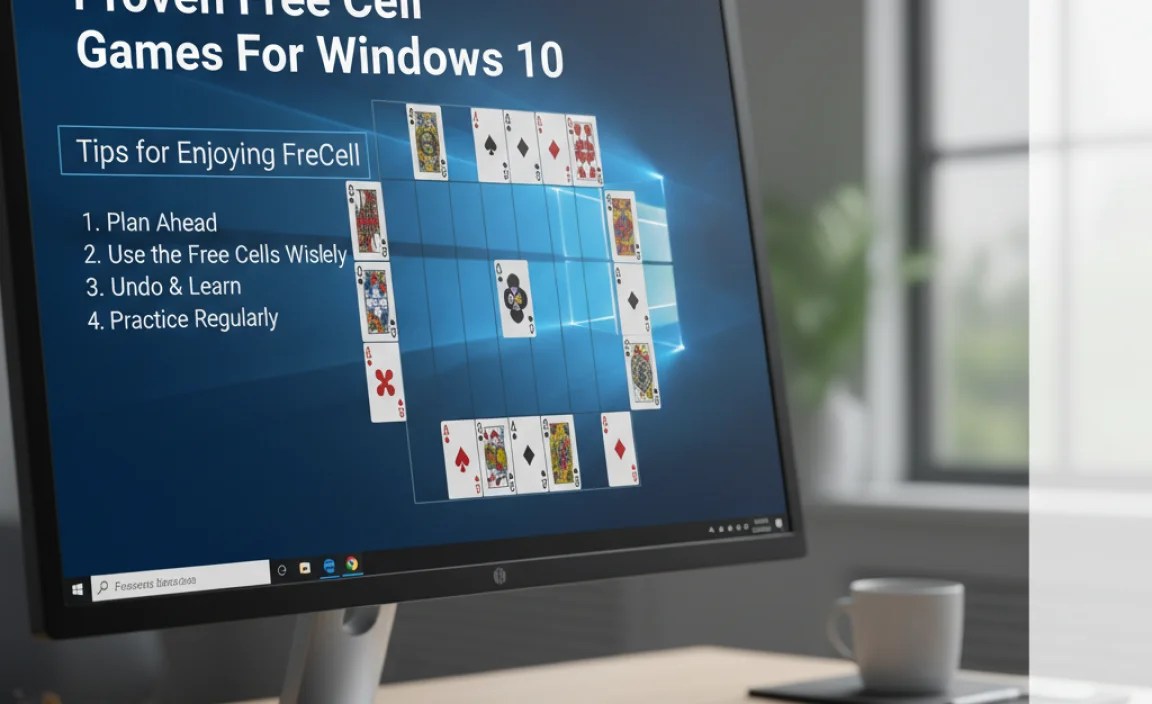
No matter which version you choose, here are a few tips to make your FreeCell experience even better:
- Understand the Free Cells: Remember, the four free cells at the top aren’t just for temporary storage; they are crucial for maneuvering cards. Plan your moves to keep them open.
- Think Ahead: Try to visualize a few moves in advance. Sometimes moving a card to a free cell might seem good now but can block a more important move later.
- Prioritize Unblocking: If a face-down card has only one card on top of it, and that card is blocking multiple other cards, try to unblock it as soon as possible.
- Suit vs. Rank: While foundations are built by suit, you can move cards in alternating colors (red on black, black on red) within the tableau, regardless of suit. Use this to your advantage.
- Don’t Rush: FreeCell is a game of patience and strategy. Take your time to analyze the board before making a move.
- Embrace the Challenge: Not every game will be a win. Enjoy the process of figuring out the puzzle, regardless of the outcome.
Security Considerations When Downloading Games
While playing FreeCell is generally very safe, especially with the Microsoft Solitaire Collection or reputable web-based games, it’s always smart to be mindful of security. When you download any software from the internet, even free games, follow these best practices:
1. Stick to Official Sources
As mentioned, the Microsoft Store is your safest bet for Windows apps. For other software, look for the developer’s official website.
Why it matters: Official stores and developer sites are vetted. Third-party download sites can sometimes host modified versions of software that include malware, adware, or unwanted programs.
2. Use a Good Antivirus Program
Make sure you have reliable antivirus software installed and that it’s up-to-date. Windows Security (formerly Windows Defender) is built-in and quite effective.
  Action:
  1. Search for "Windows Security" in the Windows search bar.
  2. Open "Virus & threat protection."
  3. Ensure "Real-time protection" is turned on.
Before running any downloaded file, right-click on it and select “Scan with [Your Antivirus Name]” to have it checked for threats.
3. Read Reviews and Check Developer Reputation
If you’re considering a download from a site other than the Microsoft Store, do a quick search for reviews of the game or the developer. Look for mentions of malware, adware, or deceptive practices.
4. Be Wary of Bundles and “Free” Software
Some free downloaders try to trick you into installing additional software you don’t want. Always choose “Custom” or “Advanced” installation options during setup and uncheck any bundled programs you didn’t explicitly ask for.
5. Understand Permissions
When installing apps, especially from the Microsoft Store, pay attention to the permissions the app requests. Does a simple card game really need access to your contacts or microphone? If it seems excessive, reconsider the download.
For more information on keeping your Windows PC secure, the official Microsoft Security resources are a great place to start: Microsoft Security.
Frequently Asked Questions About Free Cell Games for Windows 10
Q1: Do I have to pay for FreeCell on Windows 10?
A: Absolutely not! The Microsoft Solitaire Collection, which includes FreeCell, is free to play. There are also many other free options available online and for download.
Q2: Is the Microsoft Solitaire Collection safe to use?
A: Yes, the Microsoft Solitaire Collection is safe and officially from Microsoft. It’s designed to be a secure and enjoyable experience for Windows users.
Q3: Can I play FreeCell offline?
A: Yes! The Microsoft Solitaire Collection and most standalone downloaded versions of FreeCell can be played offline. Web-based versions require an internet connection.
Q4: Are there different versions of FreeCell?
A: The core rules of FreeCell are standard, but different apps or websites might offer slightly different graphics, features (like statistics or hint systems), or variations on the game. The Microsoft Solitaire Collection usually offers the classic experience with added modern features.
Q5: What should I do if a downloaded game behaves strangely?
A: If a downloaded game seems suspicious, crashes a lot, or shows excessive pop-up ads, uninstall it immediately. Run a full scan with your antivirus software to be safe.
Q6: Is FreeCell good for my brain?
A: Yes! FreeCell is a fantastic game for exercising your logic, problem-solving skills, and strategic thinking. It’s a great way to keep your mind sharp.
Conclusion: Your FreeCell Adventure Awaits!
So there you have it! Finding and playing fun, free FreeCell games on your Windows 10 PC is straightforward and safe. Whether you opt for the convenient and feature-rich Microsoft Solitaire Collection, a quick web-based game, or a carefully chosen standalone download, you’ve got plenty of excellent options. Remember to always prioritize security when downloading anything, but for the most part, these classic card games are a wonderfully safe way to entertain yourself.
Don’t hesitate to explore these options. You’ll be shuffling digital cards and strategizing your way to victory in no time. Enjoy the challenge, the relaxation, and the mental boost that FreeCell provides. With these proven free games, your Windows 10 PC is ready for some classic card-playing fun!


