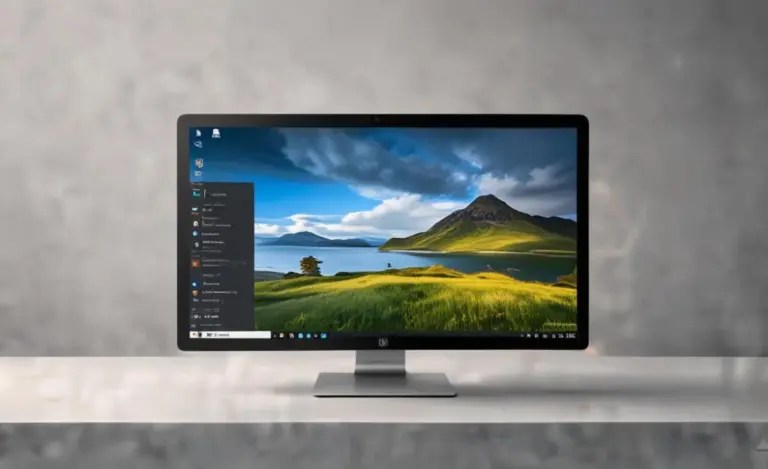
Desktop Clock Widget Windows 10: Stunning Widgets
Desktop clock widget for Windows 10 can transform a sterile desktop into a functional and aesthetically pleasing command center. Gone are the days of relying solely on the minimalist clock tucked away in the system tray. With the right software, you can bring a touch of style, crucial information, and even personality right to your desktop background. Whether you’re a productivity enthusiast seeking to keep a sharper eye on your schedule, a design-conscious individual wanting to personalize your workspace, or simply someone who appreciates a quick glance at the time without minimizing your current task, a desktop clock widget for Windows 10 offers a versatile solution.
The evolution of desktop customization has brought us a wealth of options, moving far beyond static wallpapers. Widgets, in particular, have become a popular way to add dynamic elements to our digital environments. A clock widget isn’t just about telling time; it’s about integrating a visual cue that complements your workflow and personal taste. Imagine a sleek, minimalist digital readout that blends seamlessly with your wallpaper, or perhaps an analog clock with intricate gears and hands that evokes a classic charm. The possibilities are as diverse as the users themselves.
Finding the Perfect Desktop Clock Widget for Windows 10
The first step in this customization journey is understanding the landscape of available desktop clock widget for Windows 10 options. Fortunately, Windows 10 has an open ecosystem that allows for a variety of third-party applications to enhance its functionality. These widgets can range from simple, standalone applications to comprehensive desktop customization suites.
Some widgets offer basic time display, while others extend their functionality to include date, day of the week, and even world clocks. For those who travel or deal with international colleagues, having multiple time zones readily visible can be incredibly beneficial. Beyond pure timekeeping, many advanced widgets can also display crucial system information, such as CPU usage, RAM consumption, and network activity, all within the same visually appealing package.
When choosing a widget, consider the following:
Aesthetics: Does the design align with your preferred desktop theme? Do you prefer digital or analog? Modern or vintage?
Functionality: What additional information do you want displayed? Do you need world clocks, system monitors, or calendar integration?
Resource Usage: Some widgets are more resource-intensive than others. If you have an older machine or run many applications simultaneously, opt for a lightweight option.
Customization Options: Can you change the font, color, size, transparency, and position of the widget? The more options, the better you can tailor it to your needs.
* Ease of Use: Is the installation and configuration process straightforward?
Beyond Basic Timekeeping: Feature-Rich Widgets
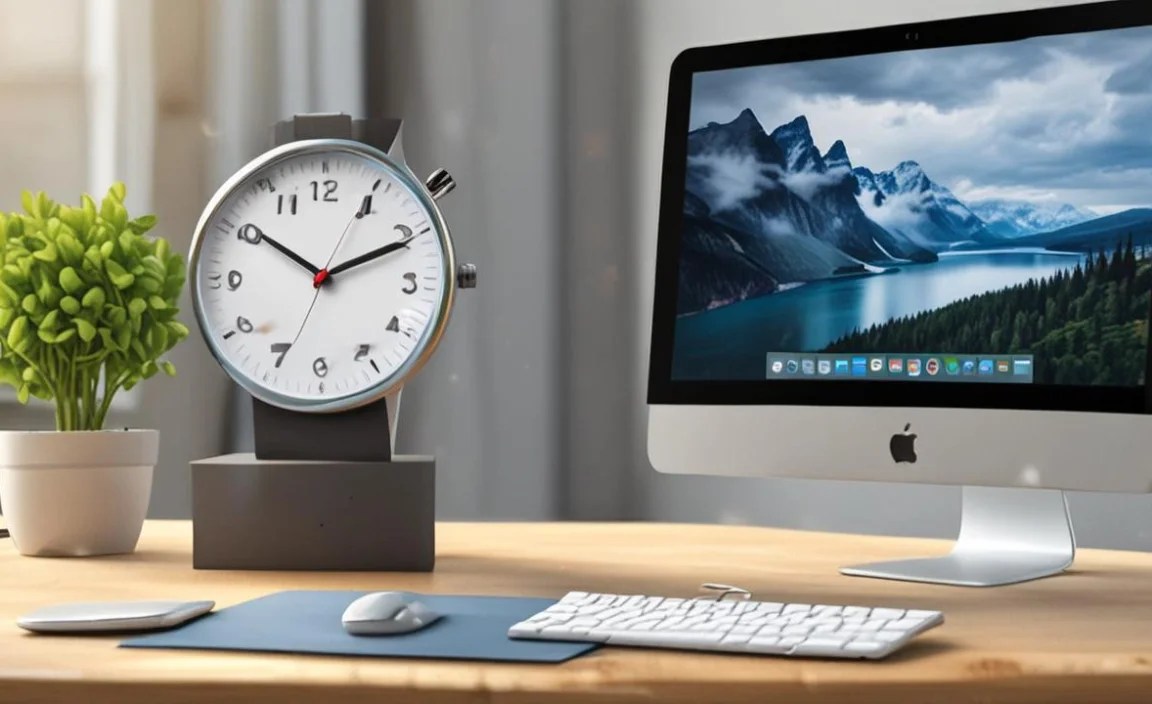
It’s worth exploring those desktop clock widget for Windows 10 solutions that offer more than just a time display. Many developers have recognized the desire for integrated functionality, leading to widgets that act as mini-dashboards for your desktop.
For example, some widgets allow you to link directly to your calendar applications, displaying upcoming appointments and events. This can be invaluable for staying organized and ensuring you don’t miss important meetings. Others integrate weather forecasts, providing real-time local conditions and predicting future changes. This is particularly useful for planning your day, especially if you commute or work outdoors.
System monitoring widgets are another popular category. These can provide a quick visual overview of your computer’s performance. Seeing your CPU load spike or your network traffic increase can be a helpful indicator of what’s happening under the hood, allowing you to identify potential issues or simply understand your system’s activity better.
Creating a Cohesive Desktop Experience
The beauty of using a desktop clock widget for Windows 10 lies in its ability to contribute to a cohesive and personalized desktop environment. Instead of a jarring intrusion, a well-chosen widget becomes an organic part of your digital landscape.
Consider matching the style of your clock widget to your wallpaper. If you have a nature-themed wallpaper, an analog clock with rustic wooden textures might be a perfect fit. For a sleek, modern setup, a minimalist digital clock with sharp lines and subtle colors would likely be more appropriate.
Transparency is another key feature that many users look for. A semi-transparent widget allows your wallpaper to show through, creating a less intrusive presence. You can often adjust the transparency level to find the perfect balance between visibility and subtlety.
Furthermore, don’t underestimate the power of placement. Experiment with different locations on your screen. Some prefer the top-left corner for easy access, while others opt for the bottom-right, mirroring the position of the default Windows clock. Others might place it centrally if it’s a significant design element they want to showcase.
In conclusion, enhancing your Windows 10 desktop with a desktop clock widget for Windows 10 is a simple yet effective way to boost both productivity and aesthetic appeal. By carefully selecting a widget that offers the right features and blends seamlessly with your personal style, you can transform your computer’s interface into a more functional, engaging, and visually pleasing space. The next time you find yourself staring at a blank desktop, consider investing a little time in exploring the vibrant world of desktop widgets – your personalized digital haven awaits.