Bluetooth not working on your Windows 10 PC? This guide shows you how to find and install the right Bluetooth software (drivers) so you can connect your devices hassle-free. We’ll walk you through simple steps to fix common issues, ensuring a stable and secure connection.
Bluetooth Software for PC Windows 10: Your Essential Guide
Having trouble connecting your headphones, speakers, or even your phone to your Windows 10 computer wirelessly? It’s a common frustration when that little blue Bluetooth icon goes missing or your devices just won’t pair. Don’t worry, this usually isn’t a sign of a big problem! Often, the fix is all about making sure your PC has the correct Bluetooth software, also known as drivers, installed and up-to-date. We’ll break down exactly what you need to do, step-by-step, to get your Bluetooth working perfectly again. First, let’s understand what this “Bluetooth software” thing really is.
What is Bluetooth Software (Drivers) Anyway?
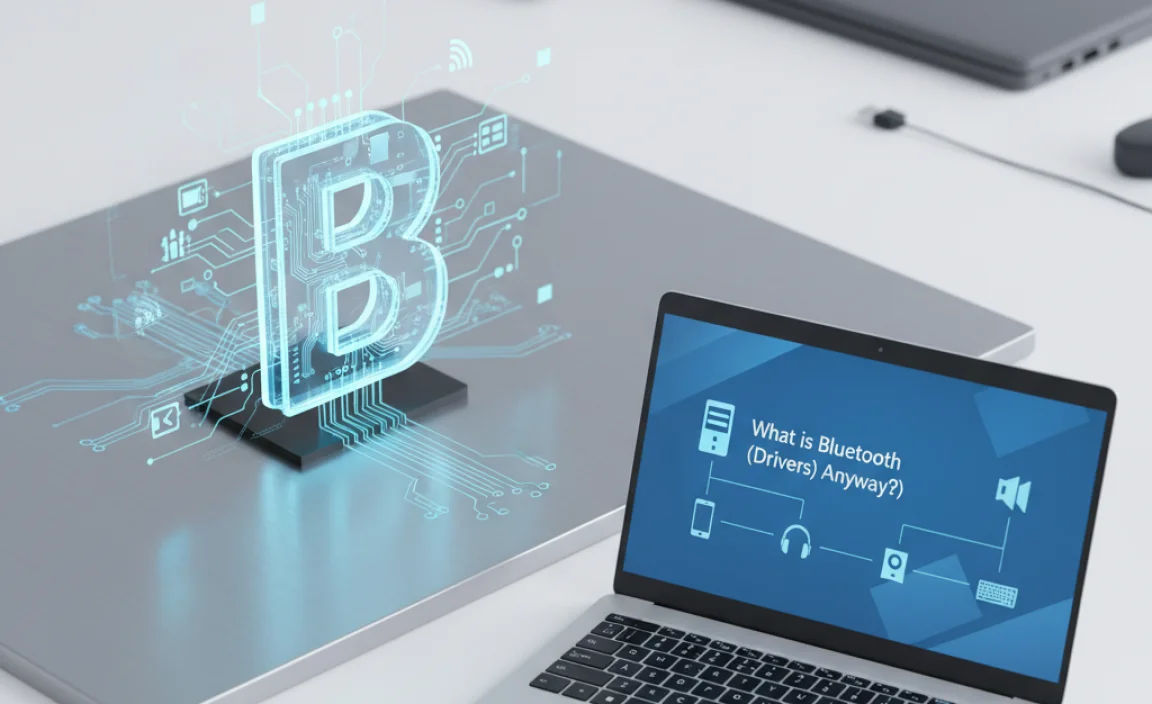
Think of drivers as tiny instruction manuals for your computer’s hardware. Your PC has various components, like your graphics card, sound card, and yes, your Bluetooth adapter. Each of these components needs specific software to communicate with Windows. This software is called a driver.
For Bluetooth, the driver is the piece of software that tells Windows how to find, connect to, and manage Bluetooth devices. Without the right driver, your Bluetooth adapter is like a car without an engine – it’s there, but it can’t do anything. So, when you’re looking for “Bluetooth software for PC Windows 10,” you’re really looking for the correct Bluetooth driver.
Why You Might Need to Update or Reinstall Bluetooth Software
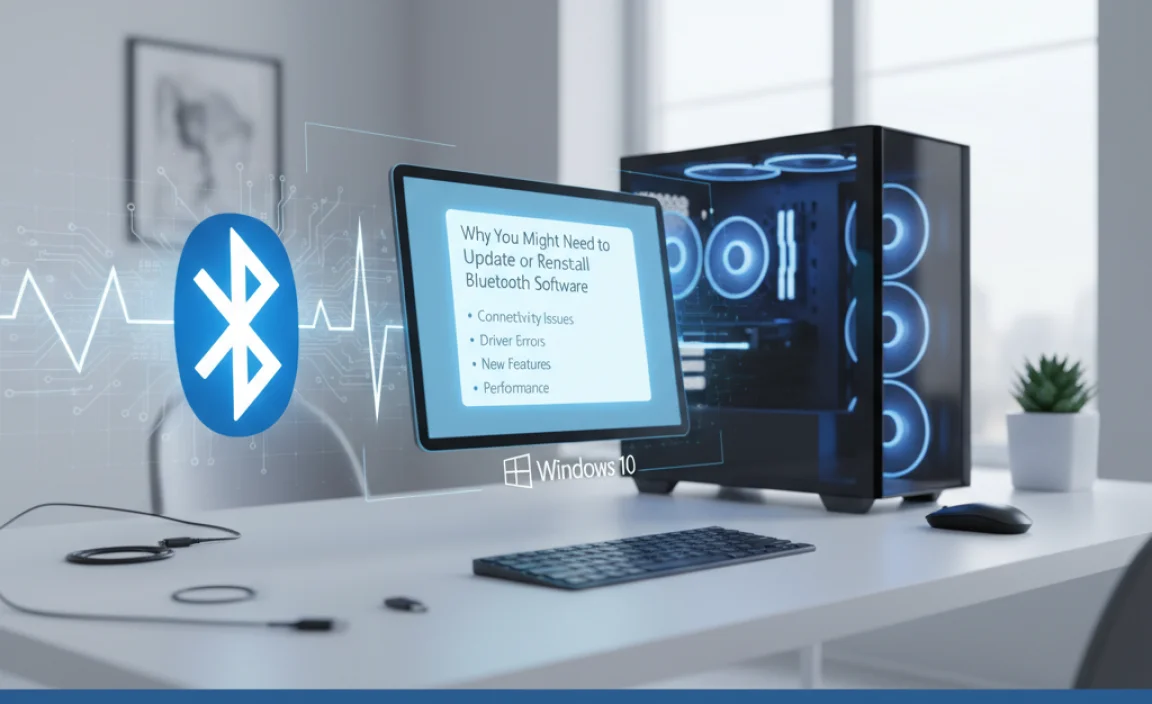
Several things can cause your Bluetooth to stop working or to act up. Here are the most common culprits:
- Outdated Drivers: The driver that came with your PC might be old and not compatible with the latest Windows updates.
- Corrupted Drivers: Sometimes, drivers can become damaged or corrupted due to software conflicts, viruses, or abrupt shutdowns.
- Windows Updates: Occasionally, a Windows update might introduce a conflict with your existing Bluetooth driver, or it might overwrite a perfectly good driver with an incompatible one.
- New Hardware: If you’ve recently added a new Bluetooth device or adapter, you might need to install specific drivers for it.
- Driver Conflicts: Other software or drivers on your system might interfere with your Bluetooth driver.
The good news is that in most cases, updating or reinstalling your Bluetooth driver will solve the problem. Let’s get started on how to do that!
Checking if Your PC Has Bluetooth
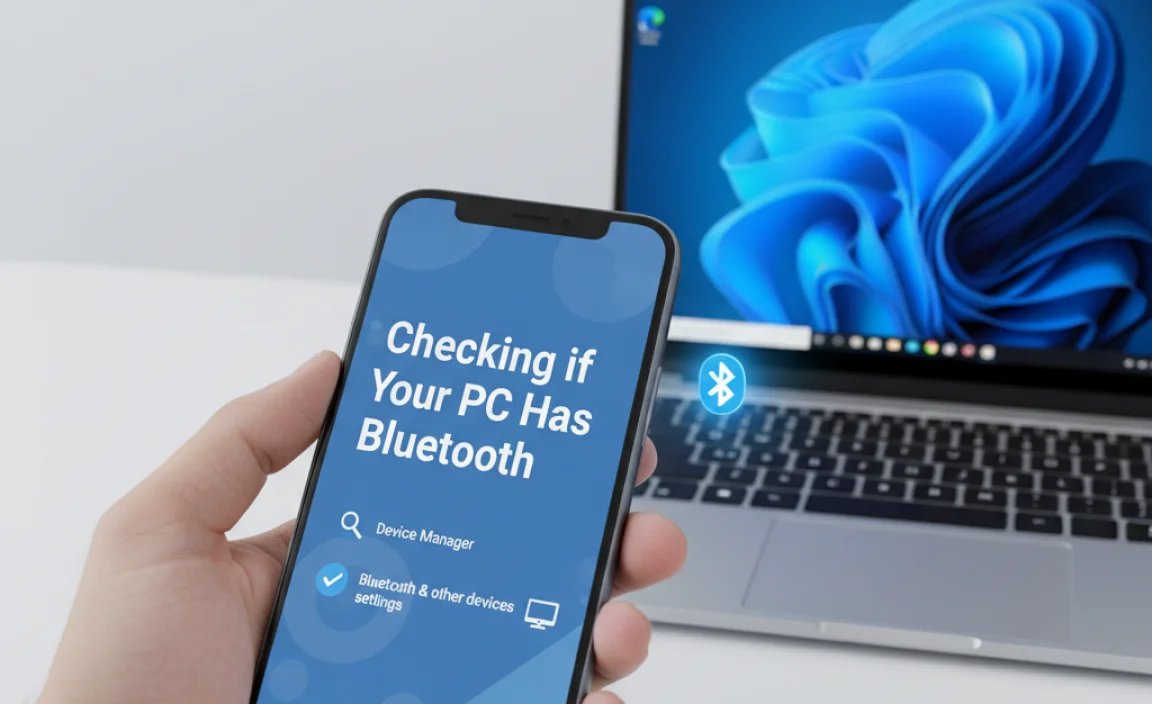
Before we dive into installing software, let’s confirm that your computer actually has a Bluetooth adapter. Most modern laptops come with Bluetooth built-in, but some desktop PCs might require a separate USB adapter.
Method 1: Check Device Manager
Device Manager is Windows’ central hub for all your computer’s hardware. It’s the best place to see if your Bluetooth adapter is recognized.
- Right-click the Start button (the Windows logo) in the bottom-left corner of your screen.
- Select “Device Manager” from the menu.
- In the Device Manager window, look for a category named “Bluetooth.”
- If you see “Bluetooth” or “Bluetooth Radios,” your PC has a Bluetooth adapter. Expand the category to see the specific model.
- If you see items with a yellow exclamation mark (!), it usually means there’s a driver problem.
- If you don’t see a “Bluetooth” category at all, your PC might not have a built-in Bluetooth adapter. In this case, you’ll need a USB Bluetooth adapter.
Method 2: Check Windows Settings (Windows 10)
Windows Settings also provides a quick way to check for Bluetooth functionality.
- Click the Start button and then click on the “Settings” gear icon.
- Select “Devices.”
- In the left-hand menu, click “Bluetooth & other devices.”
- If you see a toggle switch for Bluetooth (it might be grayed out if it’s off), your PC has Bluetooth capability. If you don’t see any Bluetooth options, it’s likely not present or disabled.
How to Find and Install Bluetooth Drivers for Windows 10
Now that we know you have a Bluetooth adapter, let’s get the right software installed. There are a few reliable ways to do this.
Method 1: Using Windows Update (The Easiest Way)
Windows Update is designed to find and install drivers for your hardware automatically. It’s often the simplest and safest method.
- Click the Start button and select “Settings.”
- Go to “Update & Security.”
- Click “Windows Update” in the left sidebar.
- Click the “Check for updates” button.
- Windows will search for updates, including driver updates. If a Bluetooth driver update is available, it will usually be listed under “Optional updates.”
- If you see an optional Bluetooth driver update, click “View optional updates,” select the driver, and click “Download and install.”
- Restart your PC after the installation is complete, even if you’re not prompted to.
Method 2: Updating Drivers via Device Manager
If Windows Update doesn’t find anything, or if you suspect a specific driver is faulty, you can update it directly through Device Manager.
- Open Device Manager (Right-click Start > Device Manager).
- Expand the “Bluetooth” category.
- Right-click on your Bluetooth adapter (it might be named something like “Intel(R) Wireless Bluetooth(R)” or “Realtek Bluetooth Adapter”).
- Select “Update driver.”
- Choose “Search automatically for drivers.” Windows will search your computer and the internet for the latest driver.
- If a new driver is found, follow the on-screen instructions to install it.
- If Windows says the best drivers are already installed, you can try the next option: “Browse my computer for drivers.”
- Click “Browse my computer for drivers.”
- Click “Let me pick from a list of available drivers on my computer.” Sometimes, Windows has older drivers stored that might work if the newer ones are causing issues. Try selecting a different driver from the list if available.
- After installing, restart your PC.
Method 3: Downloading Drivers from the Manufacturer’s Website (Most Reliable)
This is often the best way to get the most up-to-date and stable drivers, especially if you know exactly what hardware you have.
Step 1: Identify Your Bluetooth Adapter Manufacturer and Model
You need to know who made your Bluetooth adapter and what model it is. You can usually find this information in Device Manager:
- Open Device Manager.
- Expand “Bluetooth.”
- Right-click your Bluetooth adapter.
- Select “Properties.”
- Go to the “Driver” tab. You’ll see the “Driver Provider,” “Driver Date,” and “Driver Version.”
- Also, check the “Details” tab. Select “Hardware Ids” from the dropdown. The values you see can help identify the manufacturer and model.
Alternatively, if your computer is branded (like Dell, HP, Lenovo, Acer), the Bluetooth adapter is usually part of your Wi-Fi card or motherboard, and the manufacturer’s website is the primary source for its drivers.
Step 2: Visit the Manufacturer’s Support Website
Once you know the manufacturer (e.g., Intel, Realtek, Broadcom) or your PC brand (e.g., Dell, HP, Lenovo), go to their official support website. Look for a “Support,” “Downloads,” or “Drivers” section.
Step 3: Search for Your Specific Model or PC Model
Enter your PC’s model number or the specific Bluetooth adapter’s model number. Make sure to select “Windows 10” as your operating system.
Step 4: Download the Latest Bluetooth Driver
Find the latest Bluetooth driver package for Windows 10 and download it. It will usually be an executable file (.exe) or a compressed folder (.zip).
Step 5: Install the Driver
- If it’s an .exe file, simply run it and follow the on-screen instructions.
- If it’s a .zip file, extract its contents to a folder on your PC. Then, go back to Device Manager, right-click your Bluetooth adapter, select “Update driver,” and choose “Browse my computer for drivers.” Navigate to the folder where you extracted the driver files and let Windows install it.
Important Note: It’s best practice to download drivers only from the manufacturer’s official website to avoid malware or unofficial, potentially unstable versions.
Method 4: Using a Driver Updater Tool (Use with Caution)
There are many third-party applications that claim to scan your system and update all your drivers automatically. While they can be convenient, they also come with risks.
- Pros: Can find drivers quickly for all your hardware, including those you might not know need updating.
- Cons: Some free tools can install unwanted software, and paid tools can be expensive. Unofficial drivers from these tools can sometimes cause more problems than they solve.
If you choose to use a driver updater, I recommend sticking to well-known, reputable ones. Always ensure you have a backup or system restore point before you start.
My Advice: Stick to Methods 1, 2, and 3 first. They are built into Windows or directly from the hardware vendor, making them the safest and most reliable options for finding Bluetooth software for PC Windows 10.
Troubleshooting Common Bluetooth Driver Issues
Even after updating, you might run into problems. Here’s how to tackle them.
Problem: Bluetooth Icon is Missing from System Tray or Settings
This often means the Bluetooth adapter is disabled or the driver isn’t loaded correctly.
- Check Device Manager: Go to Device Manager, expand “Bluetooth.” If you see your adapter with a down arrow icon, it’s disabled. Right-click it and select “Enable device.”
- Scan for Hardware Changes: In Device Manager, click the “Action” menu and select “Scan for hardware changes.” This prompts Windows to re-detect your hardware.
- Check BIOS/UEFI Settings (Advanced): For some PCs, Bluetooth can be disabled in the computer’s BIOS/UEFI settings. This is a more advanced step, but if you’re comfortable, you can restart your PC and press a specific key (often F2, F10, F12, or Del) during boot-up to enter BIOS/UEFI. Look for settings related to “Wireless” or “Bluetooth” and ensure it’s enabled.
- Reinstall the Driver: If it’s enabled but still missing, try uninstalling the driver. Right-click the adapter in Device Manager, select “Uninstall device,” and check the box to “Delete the driver software for this device” if it appears. Then, scan for hardware changes and let Windows reinstall it, or manually install the driver you downloaded earlier.
Problem: Bluetooth Device Not Connecting or Pairing
Once the icon is back and the driver seems okay, connection issues can still arise.
- Restart Bluetooth Services: Sometimes, the Bluetooth services have crashed.
- Press Windows Key + R to open the Run dialog.
- Type services.msc and press Enter.
- Scroll down and find “Bluetooth Support Service” and “Bluetooth User Support Service.”
- Right-click each service, select “Restart.” If “Restart” is grayed out, it’s likely already running.
- Ensure their “Startup type” is set to “Automatic.”
- Remove and Re-pair Device: In Windows Settings > Devices > Bluetooth & other devices, find your problematic device, click it, and select “Remove device.” Then, put your Bluetooth device back into pairing mode and try adding it again in Windows Settings.
- Check Device Compatibility: Ensure your Bluetooth device is compatible with Windows 10 and the Bluetooth version your PC supports.
- Update Bluetooth Device Firmware: Some more advanced Bluetooth devices (like certain headphones or speakers) have their own firmware that can be updated via a companion app or the manufacturer’s website.
Problem: Bluetooth is Slow or Disconnects Frequently
This can be due to driver issues, interference, or power settings.
- Update Power Management Settings: Windows can sometimes turn off hardware to save power.
- Open Device Manager.
- Expand “Bluetooth.”
- Right-click your Bluetooth adapter, select “Properties.”
- Go to the “Power Management” tab.
- Uncheck “Allow the computer to turn off this device to save power.”
- Click OK and reboot.
- Update Wi-Fi Drivers: On many laptops, the Bluetooth and Wi-Fi share the same card. Sometimes, updating your Wi-Fi driver can indirectly fix Bluetooth issues. Visit your PC manufacturer’s website for the latest Wi-Fi drivers.
- Reduce Interference: Other wireless devices (microwaves, some USB 3.0 devices, other Bluetooth devices) can interfere. Try moving closer to your PC or away from potential sources of interference.
- Ensure Latest Windows Updates: Make sure your Windows 10 is fully updated. Microsoft often releases fixes for connectivity issues.
Essential Bluetooth Software vs. Optional Software
When you look for Bluetooth drivers, you might see different types of software packages. It’s important to know the difference.
- Core Bluetooth Driver: This is the essential software that makes your Bluetooth adapter communicate with Windows. It’s what we’ve been focusing on.
- Configuration Utility/Manager: Some manufacturers provide extra software that offers more advanced settings, device management, or profiles for specific devices. For example, Intel’s Wireless Bluetooth software might include Intel Wireless Bluetooth® for a better user experience.
- Specific Device Profiles: Software that enables advanced features for specific audio codecs (like aptX for headphones) or input devices.
For most users, installing the core Bluetooth driver is sufficient to get basic functionality working. If you’re experiencing issues or want advanced features, you might need to install the manufacturer’s specific utility software.
How to Install a USB Bluetooth Adapter
If your PC doesn’t have built-in Bluetooth, you’ll need a USB Bluetooth adapter. They are affordable and easy to set up.
- Purchase a USB Bluetooth Adapter: Choose a reputable brand. Look for one that uses a common Bluetooth standard like Bluetooth 4.0, 5.0, or higher for better compatibility and speed.
- Plug It In: Insert the adapter into a USB port on your PC.
- Let Windows Install Drivers: In most cases, Windows 10 will automatically detect the new hardware and try to install suitable drivers via Windows Update. A notification might appear showing this process.
- Manual Driver Installation (If Needed): If Windows doesn’t find drivers automatically, the adapter will likely come with a small CD or instructions to download drivers from the manufacturer’s website.
- Insert the CD and run the setup program.
- If no CD, visit the adapter’s manufacturer website, find the product page, and download the Windows 10 drivers. Run the installer.
- Verify in Device Manager: Once installed, you should see a “Bluetooth” category with your new adapter listed, or it might be under “Network adapters.”
- Restart Your PC: It’s always a good idea to restart after installing new hardware and drivers.
Security Considerations for Bluetooth
While Bluetooth is convenient, like any wireless technology, it has potential security risks if not used carefully. Keeping your Bluetooth drivers updated is one part of ensuring security.
- Keep Drivers Updated: As we’ve discussed, drivers can have vulnerabilities. Keeping them up-to-date with the latest versions from the manufacturer helps patch these security holes.
- Make Your Device Undiscoverable When Not in Use: When you pair a device or use Bluetooth, your PC broadcasts its presence. Turn Bluetooth off when you don’t need it. In Windows Settings > Devices > Bluetooth & other devices, you can toggle Bluetooth off. For PCs with Bluetooth adapters that can be made “undiscoverable,” explore those options in your Bluetooth manager software or advanced settings if available.
- Be Wary of Unexpected Pairing Requests: On rare occasions, you might receive a Bluetooth pairing request from an unknown device. Never accept these unless you know what it is.
- Use Strong Pairing Codes (If Applicable): For devices that require manual PIN entry, use complex, unique PINs.
- Beware of “Bluejacking” and “Bluesnarfing”: While less common now with better security, “bluejacking” involves sending unsolicited messages via open Bluetooth connections, and “bluesnarfing” is unauthorized access to data. Modern pairing protocols make these much harder, but limiting discoverability helps.
- Official Sources Only: Only download drivers and software from official manufacturer websites to avoid malicious software disguised as drivers. The Microsoft Security portal offers great general advice on keeping your system safe.
By taking these precautions, you can enjoy the convenience of Bluetooth while minimizing security risks.
Bluetooth Driver Status Table
Here’s a quick reference for common driver statuses you might see in Device Manager:
| Status Icon | Meaning | What to Do |
|---|---|---|
| No Icon | The device is working properly. | No action needed, unless you suspect performance issues. |
| Yellow Exclamation Mark (!) | The device is not working correctly, or Windows cannot find the necessary driver. | Update or reinstall the driver. |
| Red X (X) | The device is disabled or has been removed. | Enable the device in Device Manager (right-click > Enable device) or reinstall the driver. |
| Question Mark (?) | Windows doesn’t recognize the hardware or its driver. | Ensure the hardware is properly installed. Scan for hardware changes, or manually install drivers. |
| Down Arrow | The device is currently disabled. | Right-click the device and select “Enable device.” |
Frequently Asked Questions (FAQ)
Q1: How do I know if Windows 10 even needs Bluetooth drivers?
If your PC has Bluetooth hardware and you want to connect wireless devices like headphones, speakers, or mice, then yes, you need the correct Bluetooth drivers installed and working correctly for it to function.
Q2: My Bluetooth driver updated, but now it’s not working. What should I do?
This can happen! Go back to Device Manager, find your Bluetooth adapter, right-click it, and select “Properties.” Go to the “Driver” tab and look for a “Roll Back Driver” option. If available, use it to revert to the previous version. If not, you might need to uninstall the current driver and then manually install an older, stable version from the manufacturer’s website.
Q3: Can I get Bluetooth drivers for Windows 10 from a website other than the manufacturer’s?
It’s strongly recommended that you only download drivers from the official website of your PC manufacturer (Dell, HP, Lenovo, etc.) or your Bluetooth adapter manufacturer (Intel, Realtek, Broadcom, etc.). Third-party download sites may offer outdated, modified, or even malicious software.
Q4: My Bluetooth is acting weird – sometimes it works, sometimes it doesn’t. What’s the fix?
This sounds like a driver instability or interference. Try the troubleshooting steps in the article: ensure drivers are up-to-date, check power management settings to prevent Windows from disabling the adapter, restart Bluetooth services, and try removing and re-pairing your device. If the issue persists, consider a clean installation of the latest driver from the manufacturer.
Q5: Do I need to buy new Bluetooth software if I upgrade to Windows 11?
Generally, no. If your Bluetooth hardware worked on Windows 10, the same drivers are usually compatible with Windows 11. Windows 11 often installs generic drivers automatically. However, for the best performance and features, it’s always a good idea to check the manufacturer’s website for any specific Windows 11 drivers for your Bluetooth adapter once you upgrade.
Q6: Is it safe to use my PC’s Built-in Bluetooth?
Yes, it is generally safe to use your PC’s built-in Bluetooth, especially when you follow the security best practices mentioned in this article, such as keeping drivers updated and turning off Bluetooth when not in use.
Conclusion
Getting your Bluetooth software for PC Windows 10 properly installed and updated is key to enjoying seamless wireless connectivity. We’ve covered how to identify your Bluetooth adapter, find and install the correct drivers using Windows Update, Device Manager, or manufacturer websites, and troubleshoot common issues.
Remember, keeping your drivers updated is not just about functionality; it’s also an essential part of your PC’s security. With these steps, you should feel confident in managing your Bluetooth drivers and resolving most connection problems yourself. Now you can connect your favorite wireless peripherals with peace of mind!